
Passkey Registration
This document shows how to register a passkey with your UW-Stout account. by using Authenticator on your iOS or Android device or by using Windows Hello.
What are passkeys?
Passkeys serve as a secure, passwordless alternative to traditional passwords. They enable users to access their Microsoft personal or work/school accounts using biometric authentication methods such as facial recognition, fingerprint, or PIN. Utilizing passkeys streamlines the sign-in process while enhancing security and mitigating the risk of phishing attacks.
Prerequisites
You must have enrolled in MFA with Microsoft Authenticator before adding a passkey. Microsoft Authenticator: Enrollment Using a Mobile Device
Register a passkey in Authenticator (iOS)
- Open the Microsoft Authenticator app on your iOS device
- Tap on your UW-Stout account and then tap Create a passkey

- Tap Settings to enable Authenticator as a passkey provider.

- On your iOS 18 device, go to Settings > General > Autofill & Passwords. On your iOS 17 device, go to Settings > Passwords > Password Options.
- On both operating systems, make sure that AutoFill Passwords and Passkeys is turned on. Under Autofill From, make sure that Authenticator is selected.
- After you return to Authenticator, tap Done to confirm that you added Authenticator as a passkey provider. Then you can see Passkey added as a sign-in method for your account.
- Tap Done again to finish.
Register a passkey in Authenticator (Android)
- Open the Microsoft Authenticator app on your Android device
- Tap on your UW-Stout account and then tap Create a passkey

- Tap Settings to enable Authenticator as a passkey provider.

- Open Passwords & accounts.

- In the Additional providers section, make sure that Authenticator is selected.

- After you return to Authenticator, tap Done to confirm that you added Authenticator as a passkey provider. Then you can see Passkey added as a sign-in method for your account.
- Tap Done again to finish.
Register a Passkey using Windows Hello (Windows)
You can use Windows Hello and authenticate using facial recognition, fingerprint, or a PIN.
Setup Windows Hello
Determining Eligibility
Most newer Stout-Issued laptops are eligible for Window Hello. Desktops are not eligible due to the lack of a fingerprint sensor.The fingerprint sensor is a small rectangle or square to the right of the laptop touch-pad. Computers that are ineligible will alert you during setup.
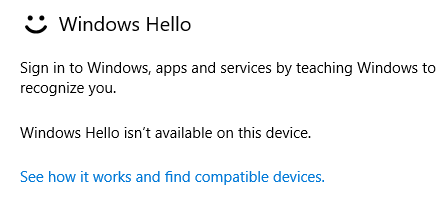
Student Opt-In Form
1. Students will need to complete the Opt-In Form to get enrolled into Windows Hello
3. Once the form is submitted, it could take up to 10 minutes to activate. You should restart your computer after this time and when prompted, enter your phone number into the Microsoft box that appears.
Setup
- In the bottom-left of the screen, click the search icon and search for sign in.

- Click Sign-In Options.
Fingerprint - Under Windows Hello, click Set Up.
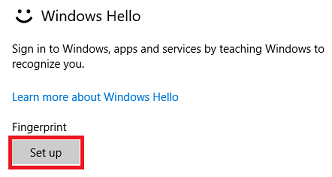
- In the new window that opens, click Get Started.
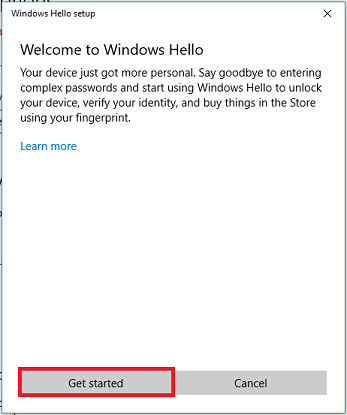
- The next window will direct you to swipe your finger on the fingerprint sensor. Swipe your finger.
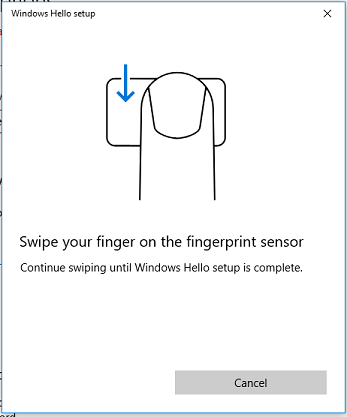
- Continue swiping your finger as directed.
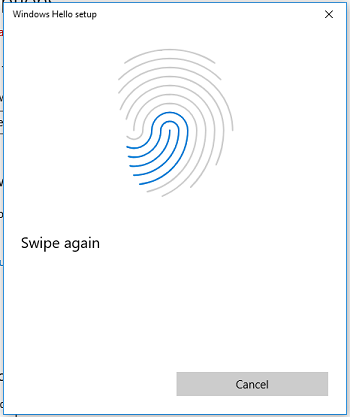
- You will now be asked to setup a PIN. This is in the event that your fingerprint sensor is no longer functioning.
Click Setup PIN.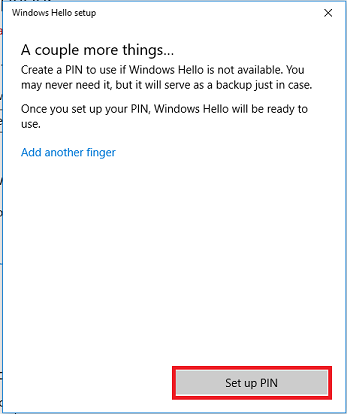
- You will be asked to verify your password. For faculty/staff, this will be your UW-Stout password used for logging in. For students, this will be the password to unlock your laptop.
Sign in and click OK.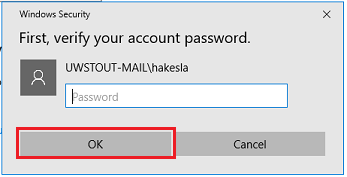
- You will now create your PIN. Please note that the PIN is required to be 12 characters long.
We suggest that you check Include letters and symbols and create a password that is easy to remember.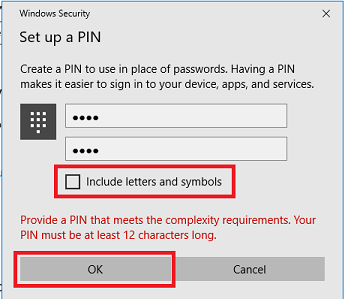
- When finished, click OK.
- If you are prompted with a blue screen telling you to create a PIN, just close the window.
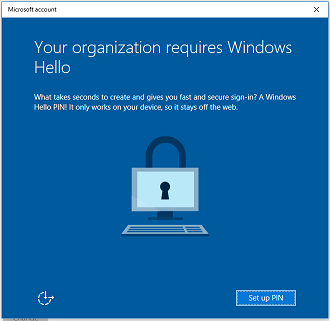
- Your fingerprint and PIN are now ready to use.
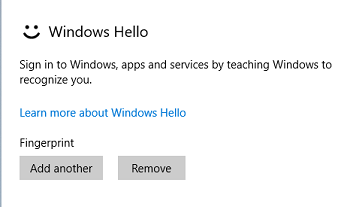
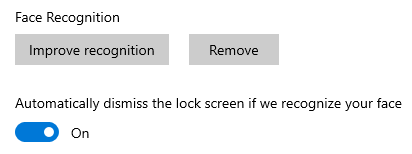
Facial ID - Under Facial Recognition, select set up.
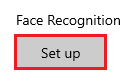
- Click Get Started.
- You will be asked to look at your computer's camera. Align your face with the blue box that appears on the camera screen.
Your computer's camera area will flash red. This is normal and is used with the infrared camera to identify you.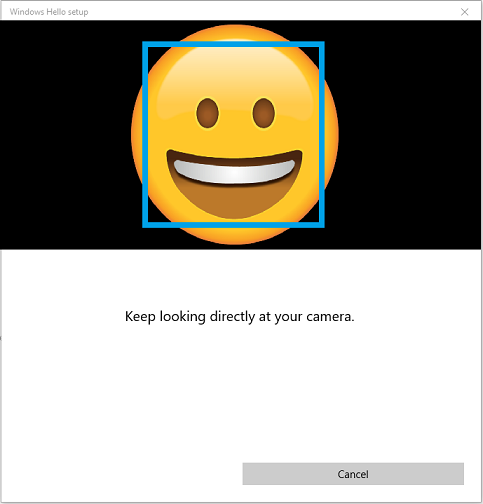
- You will now be asked to setup a PIN. This is in the event that you are unable to use facial recognition to open your computer.
Click Setup PIN. - You will be asked to verify your password. For faculty/staff, this will be your UW-Stout password used for logging in. For students, this will be the password to unlock your laptop.
Sign in and click OK.
- You will now create your PIN. Please note that the PIN is required to be 12 characters long.
We suggest that you check Include letters and symbols and create a password that is easy to remember.
- When finished, click OK.
- If you are prompted with a blue screen telling you to create a PIN, just close the window.

- Facial recognition and your PIN are now ready to use.
Use of Windows Hello
When logging in with fingerprint enabled, you will now see two sets of options. The users with a circle icon are for the fingerprint or PIN sign-in. The users with a square icon are for enterprise credentials (UW Stout username and password).Simply swipe your finger on the fingerprint sensor to unlock your computer. If your fingerprint is not working, you can also default back to your PIN or enterprise credentials.This is the screen you will see with facial recognition. The circle icon in the middle indicates that facial recognition is enabled.If you are unable to use facial recognition, you can use your pin or select another Sign-In Option.


Setup Passkey
- Sign in to your UW Stout account Security info at https://mysignins.microsoft.com/security-info
- Choose Add sign-in method.
- Select Passkey (to use Windows Hello) or Passkey in Microsoft Authenticator (to use Authenticator installed on your mobile device).
- Follow the instructions on your device.

Sign in Using Passkey
Next time you sign in:
- Open the website’s sign-in page.

- Select Sign in with passkey (or similar).
- Some sites show this immediately.
- Others may show it after you type your username/email.

- Approve the Windows Hello prompt (Face/Fingerprint/PIN).
